
AIMS has three basic movement types:
Acquisitions #
Acquisitions are either from an egg hatching, in which case AMS will automatically add the chick to your stock, or adding a new bird to the stock.
Please see the section in the link below on how to add birds to your stock.
Movements within your facility #
You can move a single bird or a group of birds.
Moving single bird #
Open one of the bird forms and locate to the bird you want to move.
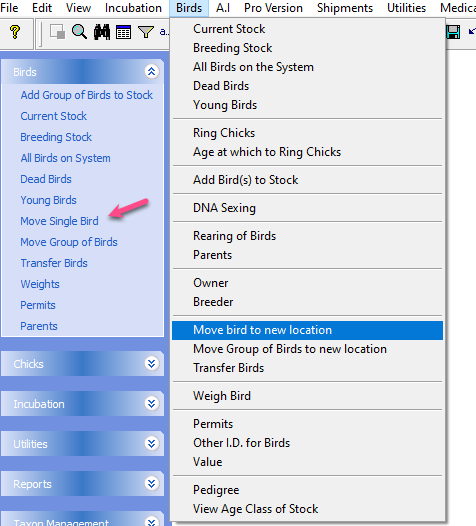
Then from the menu control on the left hand side of the screen select Move single bird, or from the Birds menu at the top of the screen select Move bird to new location.
This will bring up the Bird Movement History form.
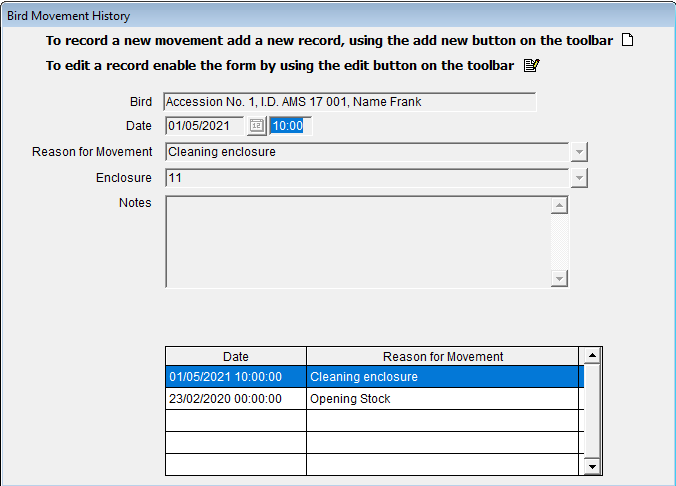
This form shows the movement history for the bird, in date order.
Movement form will be in Edit Mode #
When you open the movement form it is in Edit Mode and the entries are locked from being changed.
If you wish to change an entry, as opposed to adding a new one, click on the Edit button on the toolbar to enable the form for editing.

It is in Edit mode when opened to prevent users making the mistake of editing the exisitng record to create a new movement, rather then adding a new record.
Add a new record, enter the date and time for the movement and select the Reason for Movement from the F2 lookup pick list
Depending on the type of movement reason you select AIMS will display different entries on the form.
For movements within your facility you will need to enter an Enclosure to move the bird to.
For disposition it will want the details of the person to whom the bird went to, for example sold to, or exported to.

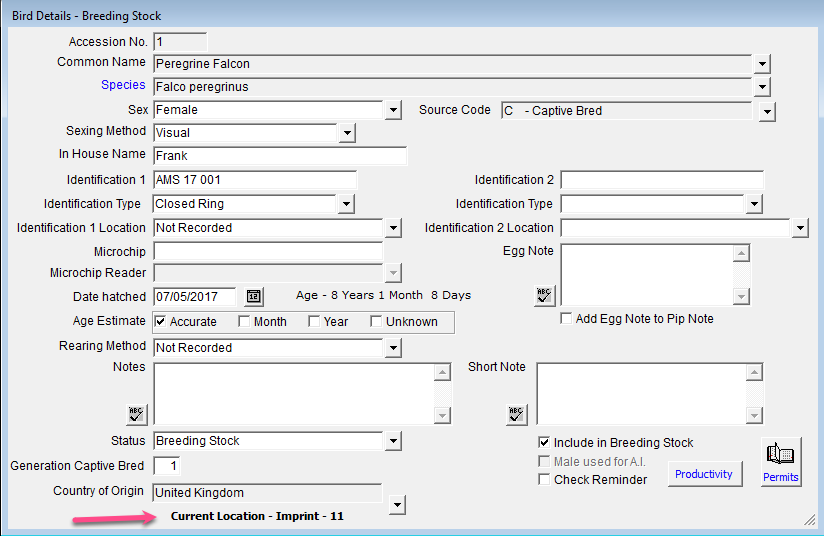
You can also open this form by clicking on the location wording at the bottom of the bird form
Moving group of birds #
When moving birds it is quite common to be moving more than one bird at a time.
For example you might move a pair from one enclosure to another for cleaning the enclosure, or exporting a number of birds.
For this you would use the move group of birds.
Personally I use this form to move even a single bird as it is so quick and easy to use.
To do this I would open the group movement form from the menu control on the left hand side of the screen or from the Birds menu at the top of the screen.

This opens the Group Movement form
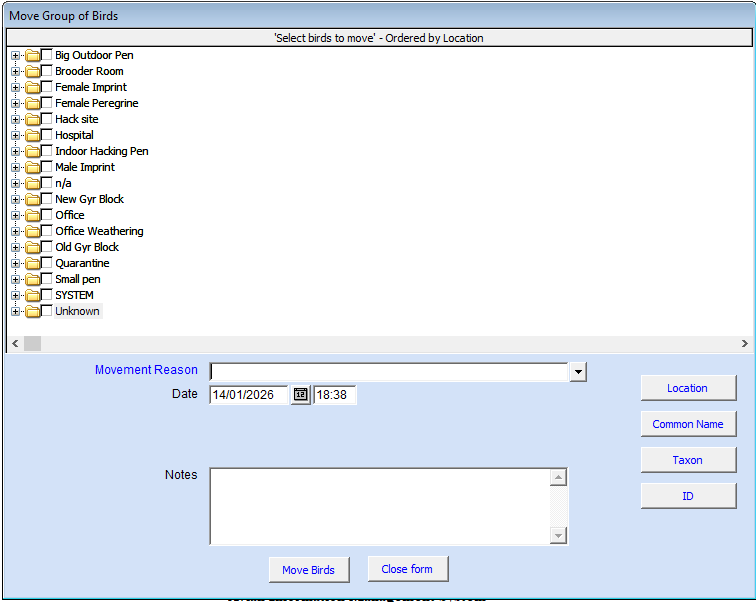
In this example I want to move 4 birds from my office weathering to my indoor hack pen.
I click on the location, office weathering in this case
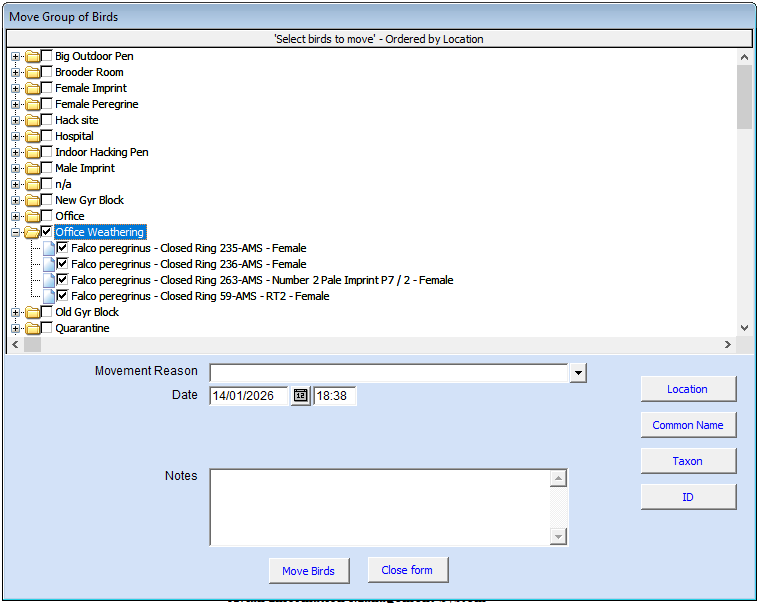
AIMS will expand the location and mark all the birds in it to be moved.
If I do not want to move all of them I just untick the ones to leave in the location.
I then need to select the reason for the movement.
In this case I am moving them as we are cleaning their enclosure

I just type C and tab out of the reason field.
As there is only one movement reason starting with C AIMS fills it in for you.
If I had more than one movement reason starting with C AIMS would show me a list of them to select from.
AIMS will then put me in the date and time field, which is the current date and time.
I can edit these, or just tab to the Enclose to move to field.

I want to move to my indoor hack pen, so I just type I and tab out of the field.
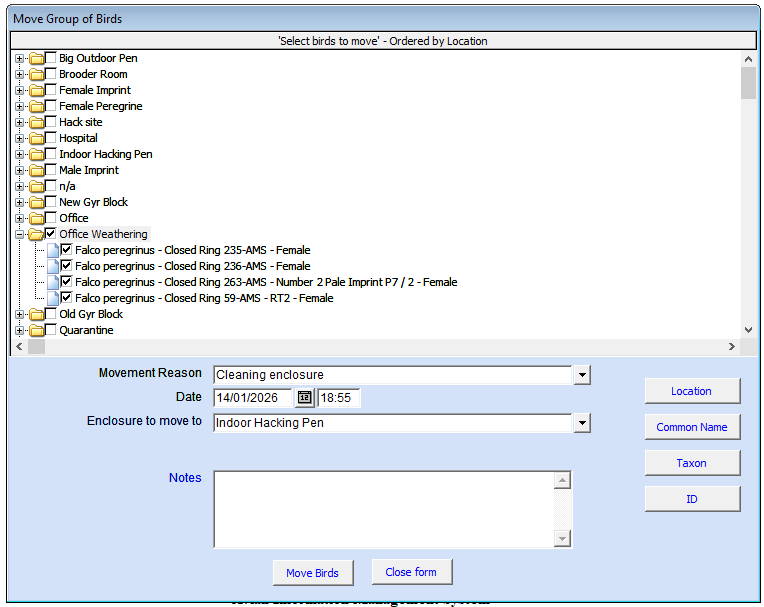
As I only have one location that starts with the letter I AIMS fills in in for me automatically.
If I had more than one location beginning with I AIMS would show me a list of them to select from.
I then click the Move bird button.
AIMS will runs some data validity checks, such as are we trying to move a bird on a date before it hatched.
If these checks pass AIMS will move the four birds in one go.
If it fails it will tell me why.
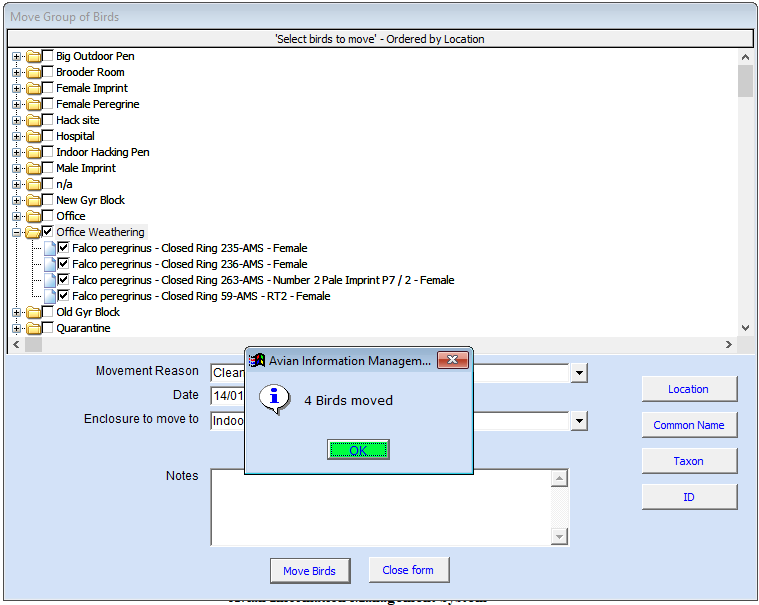
So that is 4 birds moved.
If I was moving a bird out of stock and that reason needed and address it would ask me to enter that.
In the example below I am exporting a group of birds from my Hack pen.
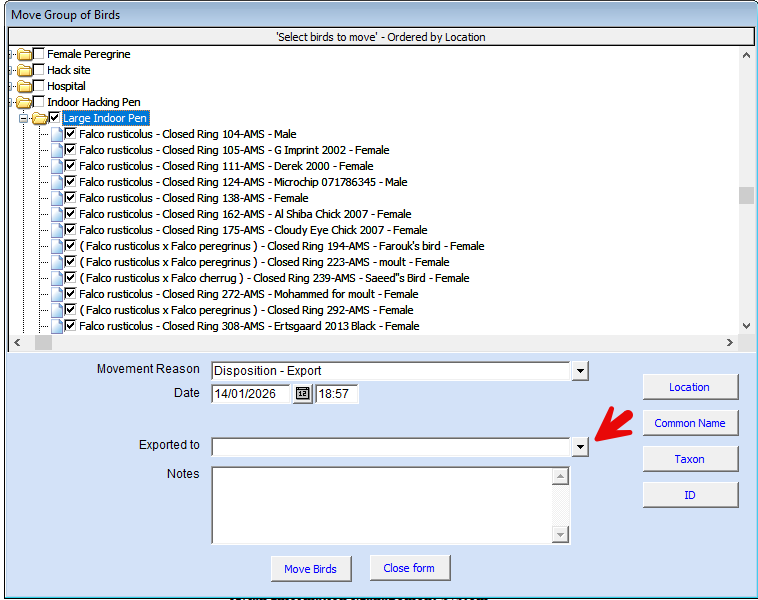
I would simply select the address form a pack list by clicking on the address selection button and them click the move birds button.
The birds would be moved out of my stock with a movement reason Disposition Export and record the address they went to for each of the birds.
Quick, easy and data validation built in.


